
Support for your Inheco Thermal Cycler - ODTC®
Welcome to the support area for Inheco On-Deck Thermal Cycler ODTC.
Answers to common issues
You’ll find help for troubleshooting network and/or hardware problems for your ODTC®.
You can find Instructions, Software and Troubleshooting tips that can help you solve the problem before you contact us.
If you need personal advice, we look forward to hearing from you, by phone or by e-mail.
Inheco technical support
Phone: +49 89 899593-121 (Monday to Friday 8 a.m. to 5 p.m. CET)
Email: techhotline@inheco.com
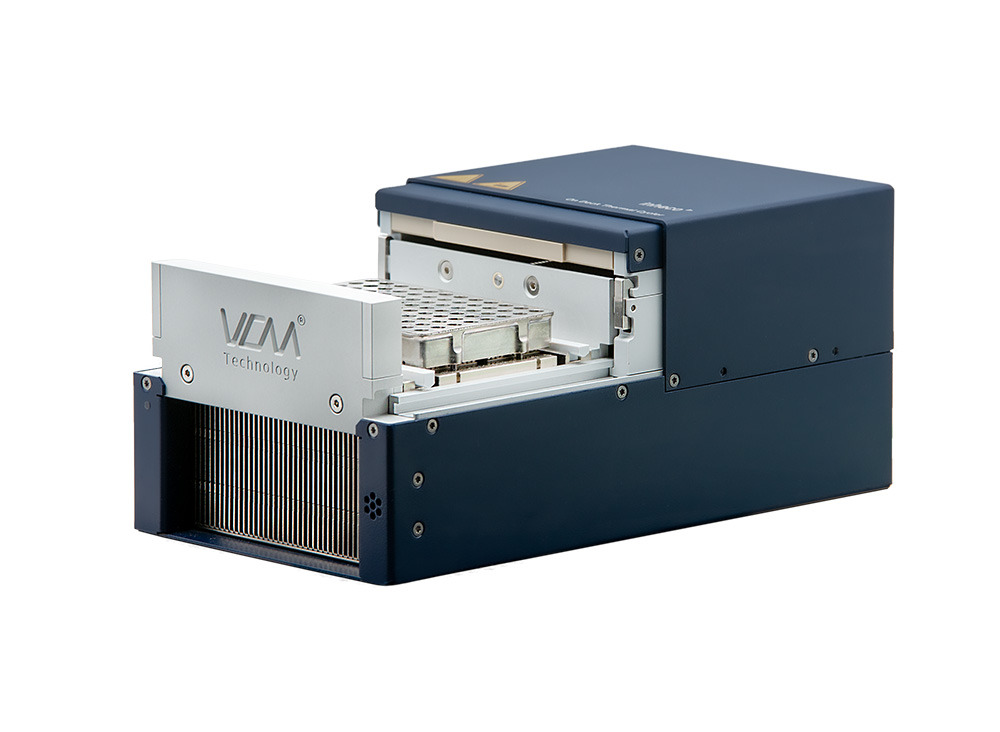
Instructions and Operating manuals:
Choose the manual for your instrument and download it as a PDF document.
- ODCT Manual (PDF)
- Script Editor (PDF)
- ODTC Device Manual (PDF) (new software version 1.2.0 released on October 18th 2022)
- ODTC SiLA Firmware Command Set (PDF)
- SiLA Command Dictionary (PDF)
- SiLA Data Capture Standard (PDF)
- SiLA Device Control Data Interface Specification (PDF)
Support Software/dll
Download the latest software.
- ODTC® Device Manager Support Software (new Version 1.2.0 released on October 18th 2022)
- Script Editor Software
- Device Finder Software
- Demo PMS.zip
A Log file is a computer generated data file that provides information about:
Serial numbers
Device type
Change of device connected to PCU
Device Error/Error/Warning/Information
=> Hardware related communication stops
PC/Software/Network related information
=> communication problems
There are two types of log files, the Inheco Sila.log and the log#1.csv both are necessary for error analysis.
There are several ways to get access:
- Copy functionality with the ODTC Device Finder
- Copy functionality within the ODTC Device Manager
- Access via Windows file manager with entering ftp://ip-address
- Info
- Warning
- Error
- DeviceError
Finding the specific error explaining the root cause for your problem in the log files might appear difficult, but if you know where to look it is very easy. To learn more about this check our website as www.Inheco.com to learn more about our ODTC webinars.
There is either no communication with ODTC possible or the Reset Command is failing or Reset and Initialize seem ok, but afterwards no other command is accepted.
Possible root causes
- Error 102 (0x66) / error 103 (0x67)
- Hardware defect (Status LED of ODTC is red)
- Incorrect TCP/IPv4 Settings
- Firewall port is not opened
- Other Firewall then from windows is installed
- Wrong EventReceiverURI
- Wrong ethernet adapter in software selected
- PCU Ethernet Port is defective
- Software timing problem e.g., software is not waiting long enough on the answer of the ODTC
- Windows update reset PC settings back to default, e.g., TCP/IPv4 or Firewall port settings
- Router is defective
- Ethernet cable is defective
To get more information on the root cause you need to get access to the log files. They are located on the microSD Card in the PCU. There are several ways to copy or get access to these files (refer to ODTC Manual Maintenance section)
In case you see a CRC failure in the log files please visit the erro code list and search for error Error 102/103 and Error 104/105
In case you see an Internal software error 1000 in the Inheco SiLA log please check settings such as for TCP/IPv3, Firewall and Firewall port, EventReceiverURI.
If adapting the communication settings does not resolve the issue, please contact the support hotline of your robotic system. Please keep our techhotline@inheco.com on cc as we might be able to support in this case also.
Usually, the ODTC lid will open as soon as the PCU is started. If the ODTC lid is already open, you will always see a small movement.
If the lid fails to open or you see no small movement, it is a clear sign for the following root causes.
Possible root causes:
- Error 102 (0x66) / error 103 (0x67)
- Error 104 (0x68) / error 105 (0x69)
- Lid mechanism could be damaged
Copy the log files from the microSD Card in the PCU. There are several ways to do so (refer to: ODTC Manual Maintenance section)
In case you see a CRC failure in the log files please visit the error code list and search for Error 102/103 and Error 104/105
If there are none of the above error in the log files, the Lid mechanism may be defective. And the device needs to be returned to Inheco.
The microtiter plate is sitting too tight in the VCM (Vapor Chamber Mount) and the gripper is not able to remove the plate.
- There is an ejection mechanism in the ODTC which will loosen the plate from the VCM. Check whether both ejection bar are correctly inserted.
Contact techhotline@inheco.com if you need a replacement.
- The plate and ejection bar are not compatible to each other. Refer to ODTC Manual page 42 to see which accessories and plates are tested.
Contact presales@inheco.com
to learn more about customized ejection bars.
- The plate is too big for the Mount. E.g., a plate compatible to ODC 96 XL is used in an ODTC 96. Check the accessory list in the ODTC Manual.
- In rare cases it could be that even an allowed plate is not fitting anymore if the manufacturer of the plate changed the tooling for manufacturing. This has small influences on the dimensions and could cause a sticky plate.
- The VCM is damaged which means the plate does not fit in correctly anymore.
There could be several root causes for communication loss:
- ODTC is defective
- Company network is not stabile
- Defective hardware such as router, ethernet cable
If the log#x.csv file shows a specific hardware device error visit our error code list to receive further information.
In case no hardware device error is shown, check the Inheco Sila.log for the internal software error 1000. If this is set, this is mostly due to a not stabile company network. Please see some possible root causes in the section “log file shows internal software error 1000”
Data exchange with the PC is not possible:
In this case, the ODTC is unable to send its response events which can be caused by several problems.
After some time, there is a timeout error as the ResponseEvent cannot be send to the remote host.
The ODTC is InError state (red LED) and does not accept any commands at that state.
Root Cause:
Communication loss between ODTC and PC/network/software.
The ODTC needs a restart to communicate again. Afterwards analyze the InhecoSiLA.log. Following the internal software error 1000 entry the log file shows further information.
Provide this information to the software engineer/support hotline of your robotic system software. If you want assistance from Inheco keep techhotline@inheco.com as cc on your emails.
For analyzing reproducible internal software error 1000 it sometimes helps to track the communication between the PC und the ODTC with programs like wireshark to see what happened when communication gets lost.
The lid is not aligned with the front but there is no error message, and everything seems to work fine.
The closed lid does not need to be aligned with the front of the ODTC when closed with a plate and lid.
The ODTC is measuring the pressure it needs to close the lid and when a specific pressure is achieved the lid stops closing. Additionally, a light barrier measures whether the lid is within the correct position which has an allowed deviation of several mm between ODTCs. The most important is that the lid is over the front wall.
If there is no error from the light barrier indicating that the ODTC lid would be in wrong position or the error that the lid closure was taking too long it means that the lid is closed according to Inhecos specification.
If you are unsure send log files and an image of your closed ODTC to techhotline@inheco.com.
The device cannot be controlled with the software anymore.
- Status LED at devices with Firmware 225/232 is still green.
- Status LED at devices with Firmware 265 and higher is red.
Root cause:
There is a short data transfer between PCU und ODTC after the PCU is powered off
In rare cases this takes too long, and the exchanged data package is incomplete. This causes a difference in the check sums of PCU and ODTC. This error is written into the log#x.csv.
This error can happen during a firmware update.
In most cases the problem can be solved once and for all with reflashing the same firmware on the ODTC. In case you have firmware version 232 or smaller we recommend updating to the newest firmware version.
During this firmware update the incorrect data is rewritten and the problem is solved. Afterwards the ODTC can be used again.
With some devices the error happens again. In this case you can reflash the firmware if you need the device urgently. But eventually the PCU needs to be returned to get a repair.
When the error happened after a firmware update to firmware 265 or higher it is necessary to check the log files whether the log file shows already the new firmware version 265 including Sila Version 7459 or version 277 including Sila version 7783.
If this is the case, you can use a 7459 respectively the 7783.bin file and reflash the firmware once again with the ODTC Device Manager. It is not necessary to repeat the USB cable and USB stick update.
If the old version is shown, repeat the firmware update with the USB Stick.
The device cannot be controlled with the software anymore. This is an error that can only happen at devices with Firmware 265 and higher.
- Status LED is red.
Root cause:
In most cases this error happens during a firmware update from version 225/232 to a higher version.
Use the ODTC Device Manager Software, to receive a Service Token for „Fix Init CRC“.
Send this token to techhotline@inheco.com . You will receive that response token latest at the next working day.
To get the Service Token open the ODTC Device Manager and connect to the ODTC. The state of the device will be „InError“. Go to menu „device“ and open „Fix Init CRC“. You will receive further instructions by the software.
Description
Full Warning: “Drawer Lid is not closed correctly. Check whether a disposable is inserted and positioned correctly on the mount.”
This Warning is only used for devices with Firmware 225 or smaller. This warning was removed at firmware 232 and higher.
Root causes:
- No plate inserted
- No Sealing Cover or automatable lid inserted
- Used plate and used Sealing Cover or automatable lid are too thin.
Solution:
Check whether the warning is only set when no plate or no Sealing Cover is inserted. If the warning is also set when the combination is in this case the combination is too thin. This can be caused due to high variances in the thickness of the mat on the Lid.
If you want to get rid of this false warning, please update to newest firmware 277.
The PCU stops the run due to this error.
Root cause:
- Follow up error on a communication issue. We found that in many cases the InternalSoftwareError 1000 is set in the log file before this error happened. The InternalSoftwareError is related to communication issues. And when these are solved the error 145 did not happen again.
- Defective mainboard
- Defective power supply
Please visit the knowledge base for the instructions for Log file shows InternalSoftwareError 1000.
If the error 145 is persistent after solving the communication issue return the device to Inheco for repair.
If the log file does not show the internal InternalSoftwareError 1000 and the error 145 is persistent, return the ODTC to Inheco.
The PCU stops the run due to this error.
Root cause:
- Follow up error on a communication issue. We found that in many cases the InternalSoftwareError 1000 is set in the log file before this error happened. The InternalSoftwareError is related to communication issues. And when these are solved the error 145 did not happen again.
- Defective mainboard
- Defective power supply
Please visit the knowledge base for the instructions for Log file shows InternalSoftwareError 1000.
If the error 145 is persistent after solving the communication issue return the device to Inheco for repair.
If the log file does not show the internal InternalSoftwareError 1000 and the error 145 is persistent, return the ODTC to Inheco.
Deviation between set temperature and the real temperature at the mount is too large.
Root cause:
This is mostly related to a wrongly programmed temperature method. Either the Ramp Speed (slope) was not programmed according to the manual, or the temperature method was programmed for a different filling level. Another reason could be that the ambient temperature at the ODTC is too high in this case you should see an additional warning in your log files warning 0188 (0xBC).
You need to check your programmed method in the ScriptEditor and correct either the slope according to the table within ScriptEditor or write a method for the correct filling level according to what is currently used in your experiment.
Also check the log#x.csv whether you see the warning for ambient temperature.
To learn more about the ScriptEditor Settings having an influence on the ODTC performance visit our ScriptEditor webinar.
Deviation between set temperature and real temperature at the mount is too large on plateau.
Root cause:
This is mostly related to a wrongly programmed temperature method. The temperature method was programmed for a different filling level. Another reason could be that the ambient temperature at the ODTC is too high in this case you should see an additional warning in your log files warning 0188 (0xBC).
You need to check your programmed method in the ScriptEditor and write a method for the correct filling level according to what is currently used in your experiment.
Also check the log#x.csv whether you see the warning for ambient temperature.
To learn more about the ScriptEditor Settings having an influence on the ODTC performance visit our ScriptEditor webinar.
Vapor Chamber Mount might be damaged. Thermal performance might be decreased.
Root Cause:
The Vapor Chamber Mount is very sturdy and cannot be damaged easily. However, if the Mount is heavily damaged it can getdevelop a leak or fracturehole. In this case the functionality is compromised. And the thermal performance is significantly decreased.
You can use the Inheco OVT to test ensure that the ODTC is functioning within its technical specifications.
If the VCM is showing warning 212, you can continue to use the device until it starts to fail, at which point, and you need to return it for repair.
Deviation between set temperature and real temperature at the lid is too large on plateau.
Root cause:
This is mostly related the fact that the ODTC is run with different lid temperatures. The lid does not have active cooling.
An example of when this error would occur would be when a method calls for a lid Temperature of 80°C directly after a method with lid temperature of 100°C. In this case the ODTC expects the Lid to be at 80°C but it is cooling down from 100°C too slowly for the process.
If you need to have the lower Lid temperature you can ignore the warning. In case the lower temperature is not necessary rewrite your method.
To learn more about the ScriptEditor Settings having an influence on the ODTC performance visit our ScriptEditor webinar.
Max ambient temperature is too high
Root cause:
The operating temperature for the ODTC is +15°C to +32°C. If the sensor at the heat sink measures temperature higher than +32°C the warning is set.
There could be several root causes for this:
- The space in front of the device or at the ventilation outlet is not sufficient. This means the ventilation is blocked. The recommended space is 30mm.
- The ambient temperature on the robotic system deck is too high so it cannot be used to cool down the ODTC.
- Another device is located near the ODTC which blows hot air onto the air inlet/heat sink of the ODTC.
- Fan/s of ODTC is not working (hardware defect)
Check the fans of the ODTC. If they are not working return the ODTC for repair.
If they are running, please check the space for ventilation, check whether something is blocking the ventilation inlet or outlet and check the ambient temperature on deck. Maybe the Exhaust air duct is not sufficient.
Drawer moves when it is not supposed to.
Root cause:
If this error occurs frequently and you can see the that screw at the back of the ODTC lid mechanism is not moving, then this indicates a problem with the motor or light barrier.
If you are sure that the error is not set by using the manual mechanism at the back of the device return the device for repair.
Drawer does not open or close within the requested 16s (Timeout).
There are several possible root causes:
Sealing mat of Sealing Cover is too old. It should not be reused more than 50 times.
Solution: Exchange the Sealing Cover against a new one
A wrong plate type is inserted. There are only specific plate types allowed.
Solution: Check the manual for tested plate types if you need to use a specific plate not mentioned in the list contact techhotline@inheco.com to learn more about availability/ custom-made versions.
Both Sealing Cover AND automated lid are used. Which means the full setup is too thick.
Solution: Remove the Sealing Cover
The plate is sealed with a foil and this foil sticks to the Sealing Mat of the Sealing Cover.
Solution: Contact techhotline@inheco.com to receive a special Sealing Cover for use with sealed plates
Something is blocking the drawer
Solution: Check the Lid area to see whether e.g., the plate, the gripper or a loose ejection bar is blocking the Lid.
The motor for the drawer is failing
Solution: Return the device for repair
The drawer mechanism is worn out
Solution: Return the device for repair
Drawer does not open or close within the expected time
This error can easily be solved by resending the command. If you are unsure whether you still have the error after the command was resend, please contact your software engineer to find out whether a resend command is implemented.
There are several possible root causes:
Sealing mat of Sealing Cover is too old. It should not be reused more than 50 times.
Solution: Exchange the Sealing Cover against a new one
A wrong plate type is inserted. There are only specific plate types allowed.
Solution: Check the manual for tested plate types if you need to use a specific plate not mentioned in the list contact techhotline@inheco.com to learn more about availability/ custom-made versions.
Both Sealing Cover AND automated lid are used. Which means the full setup is too thick.
Solution: Remove the Sealing Cover
The plate is sealed with a foil and this foil sticks to the Sealing Mat of the Sealing Cover.
Solution: Contact techhotline@inheco.com to receive a special Sealing Cover for use with sealed plates
Something is blocking the drawer
Solution: Check the Lid area to see whether e.g., the plate, the gripper or a loose ejection bar is blocking the Lid.
The motor for the drawer is failing
Solution: Return the device for repair
The drawer mechanism is worn out
Solution: Return the device for repair
No SD Card found. Log and trace files won´t be written. But ODTC is still fully functional.
Possible root causes:
- SD-card in PCU is defective
- SD-card in PCU is missing
- SD-card reader of PCU is defective
Insert a SD-card type TScGUSDC 2GB Class 2 or Transcend TS4GUSDC10 4GB. If one is already inserted exchange, it for a new one.
If the new SD-card is still not recognized return the PCU for repair.
The deviation between both LID temperature sensors is too high
Possible root causes:
- Not all wells are filled with liquid (uneven load)
- Defective heating foil e.g., bent due to wrong closure of lid (refer to manual) or component is defect.
If you don´t need all wells filled with reaction mix, please fill the unnecessary wells with water to avoid this device error.
Please check whether you can see some bent areas or scratches at the heating foil in this area:
If the device error 177 continues to occur, please return for repair.
AD converter correction not successful.
Root cause:
For older devices - production date before 2021, please contact Inheco for support
For new devices - Production date after 2021, This error occurs exceptionally seldom and even then, mainly only once in the lifetime fo the ODTC - reboot the device an continue to monitor for the error
If you have a reproducible device error 130 (0x82) please return the device to Inheco for further analysis and improvements.
Lid temperature is too high
Possible root cause:
- Controlling part on mainboard of PCU is defective
- Defective heating foil
If you have a spare PCU available, you can try whether this solves the issue and keep the ODTC on the robotic deck. When you exchange PCUs make sure that they have the same firmware.
In any case, the defective PCU or the defective ODTC need to be returned for repair.
Max ambient temperature is too high
Root cause:
The operating temperature for the ODTC is +15°C to +32°C. If the sensor at the heat sink measures temperature higher than +32°C the warning is set.
There could be several root causes for this:
- The space in front of the device or at the ventilation outlet is not sufficient. This means the ventilation is blocked. The recommended space is 30mm.
- The ambient temperature on the robotic system deck is too high already so it cannot be used to cool down the ODTC.
- Another device is located near the ODTC which blows hot air on the heat sink of the ODTC.
- Fan of ODTC is not working (hardware defect)
Check the fan of the ODTC. If they are not working return the ODTC for repair. If they are running, please check the space for ventilation, check whether something is blocking the ventilation inlet or outlet and check the ambient temperature on deck.
This error means that the fuse for the H-Bridge was triggered. Unfortunately, this is not an error code which states a specific defective part of the ODTC, and this can happen due to several reason.
Possible root causes:
- Permanent hardware issue (at ODTC or PCU)
- Short/Electrical issue, e.g. due to condensation at the devices electronical parts
Make sure that you operate the ODTC according to specifications in the manual. Repeat the last method runs (or best perform an OVT test). Run the test without chemicals, just with water if you do not have an OVT. If the error is persistent or reproducible use a different PCU.
If you are sure there is no condensation, and the error is reproducible or the PCU was causing the issue contact techhotline@inheco.com
Initialization error: photoelectric sensor does not recognize that drawer is closed
Root cause:
- Problem at the photoelectric sensor
- Photoelectric sensor might need adjustment. Please contact INHECO support to get a short instruction.
Check the open Lid and close Lid functionality with an open/close batch in the ODTC Device Manager if error is reproducible return for repair.